
Klonify

SUBTITLE REMOVER

Remove subtitles from a video and write your own text instead.

Remove subtitles from a video and add your own text.

Remove subtitles from a video and add your own text.

Subtitles are burned into the image. Klonify blurs their area or crops the video to push them out of frame. Then you pick up your edit and write your own text in the editor.

Subtitles are burned into the image: Klonify blurs their area or crops the video to cut them out of the frame. Then you jump back into your edit and write your text in the editor.

Subtitle remover

Klonify interface: removing subtitles from a video

Before, the text "Its texture is ultra light" is burned into the video. After processing, it's gone.

How do you remove burned-in subtitles from a video?

When subtitles are burned into a video, the only way to remove them is to change the image itself. The subtitle remover from Klonify, a French tool that creates sales videos for TikTok Shop, blurs the text area or crops the video. The background behind the letters isn't rebuilt. Included starting with the Pro plan, at €39/month.

Reuse a video with your new text

Burned-in captions stay under any text you add, and the two clash on screen. Hide them first, then write your message on top in the editor, without remaking the video.

Choose what stays visible

Blurring keeps the full frame, with one area altered. Cropping cuts out part of the image. Choose based on where the text sits and where the product or face is.

The cleaned-up video stays in your edit

An online removal site gives you a file to download, then re-import into your editing software. Here, you pick up the cleaned-up video right in the Klonify editor to add your text and AI voice.

YOUR VIDEO

Upload the video to clean up.

Upload the video to clean up.

Upload the video to clean up.

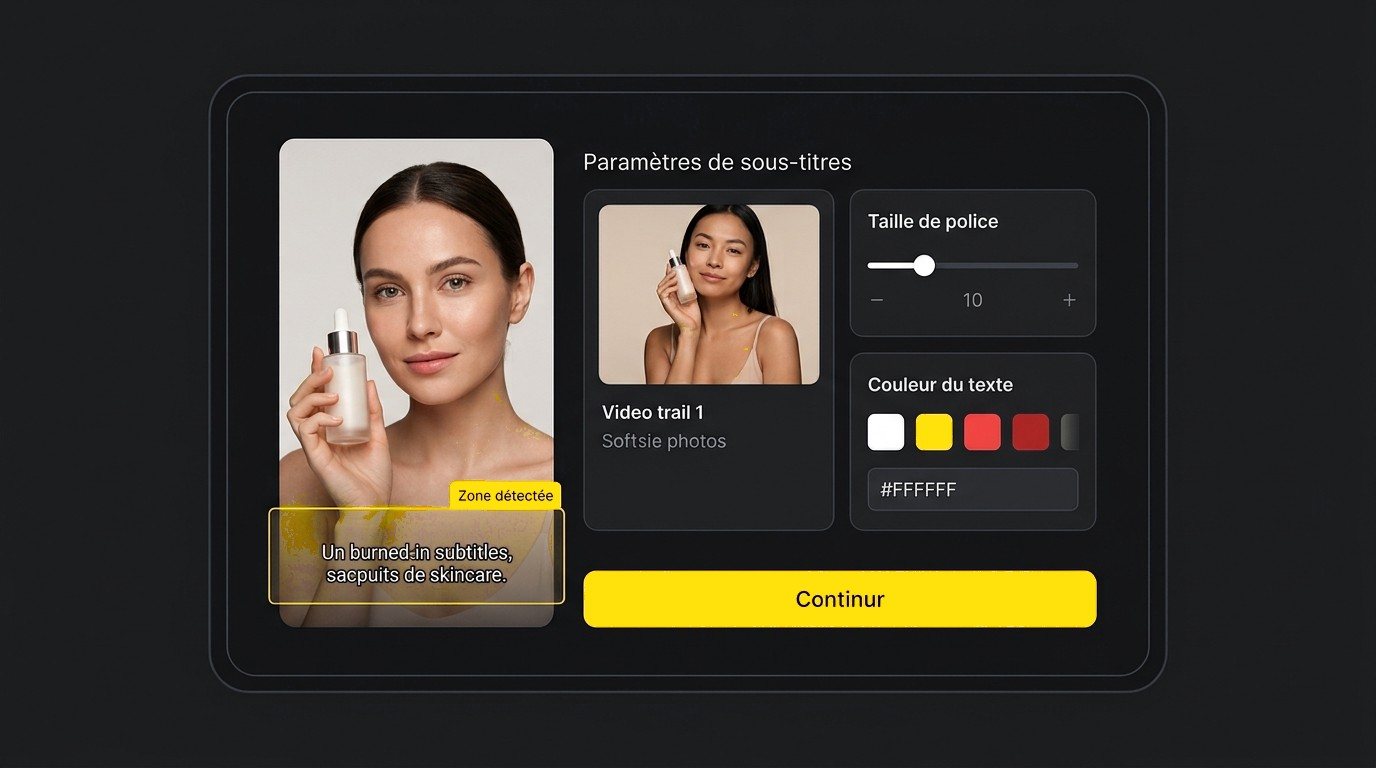
Drop in your video. Klonify finds the area where the burned-in subtitles sit.

Handy for reusing an already captioned video with new text.

Uploaded video with the burned-in subtitle area outlined, next to a settings panel

Blur the text area.

Blur the text area.

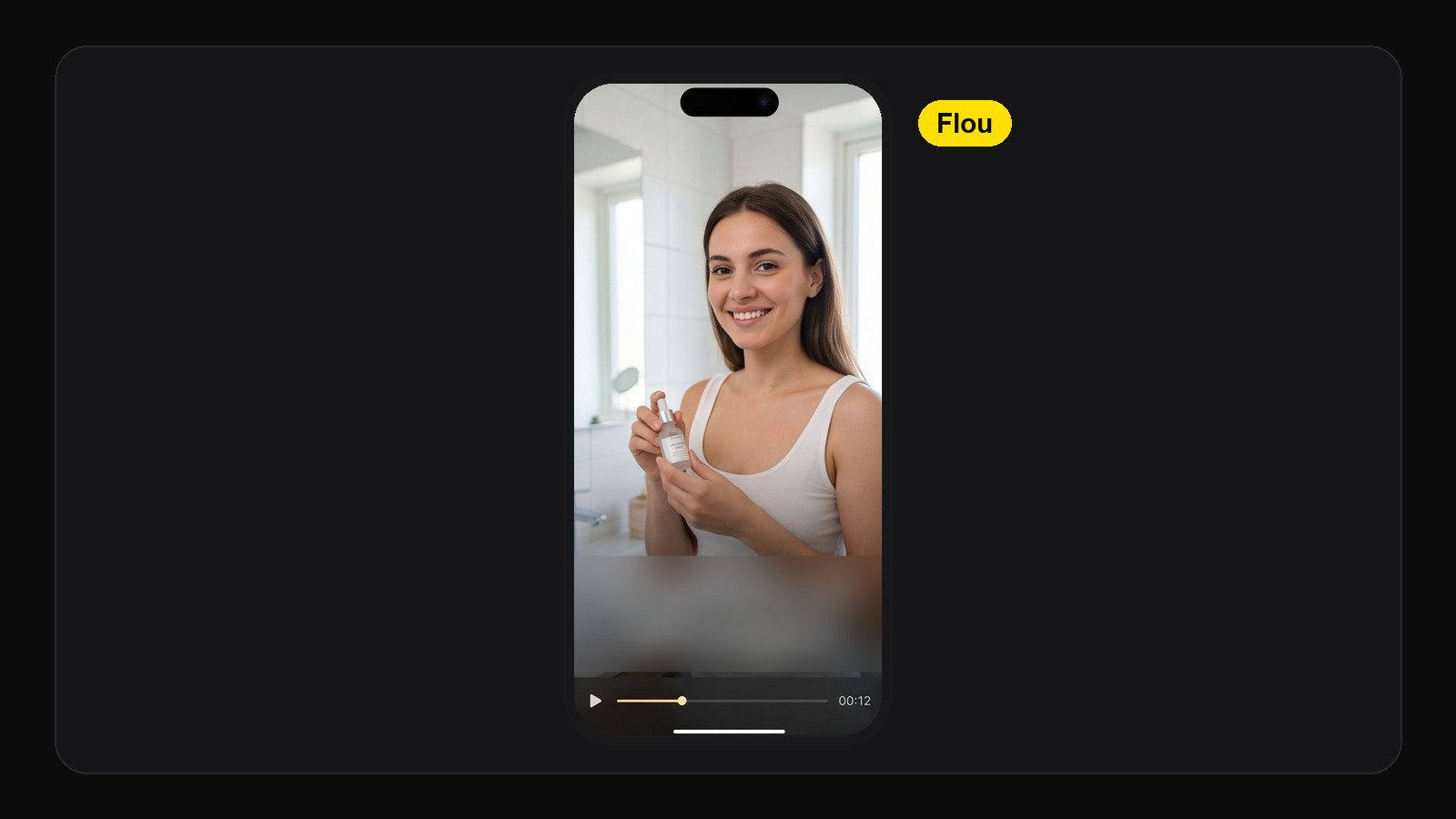
The text disappears under a blur and the image keeps its full framing. The blurred area stays visible on screen.

Video of a woman holding a bottle, with the bottom of the frame blurred where the text was
Cropping that pushes the text strip out of frame to remove subtitles from a video

Or crop the video.

Or crop the video.

The strip with the text moves out of frame, and the text goes with it. Make sure the product, the face, and the gesture stay fully in shot.

COMPARISON

Klonify or an online AI eraser to remove subtitles?

GhostCut, Vmake, and Media.io say they erase subtitles and then rebuild the background with AI, with no blurred area. When the text runs over the product or a face, that's where they shine. Klonify keeps it simpler: it blurs the area or crops the video, then you move straight on to your new text in the editor, all in the same subscription.

Klonify compared to Online AI erasers
CriteriaKlonifyOnline AI erasers
MethodBlurs the area or crops the videoErases the text, then rebuilds the background with AI
Background behind the lettersNot rebuilt: blurred or moved out of frameRebuilt, "No blur boxes" at GhostCut
Text detectionSubtitle area detected by KlonifyAutomatic at GhostCut, brush-based at Media.io, after marking at Fotor
CroppingYes, the text strip moves out of frameOffered as an option at Media.io
Try before payingNo, there's no free plan3-second preview at Fotor, first 5 seconds at Vmake
PriceIncluded starting with the Pro plan, at €39/month, with the editorGhostCut from about $0.06 per minute; Fotor: 20 credits per video

Who's it for?

Go with an AI eraser like GhostCut or Vmake if the text covers something you need to keep intact, like the product or a face: they say they rebuild the background. Go with Klonify if a blur or a crop does the job and you want to write your new text and add your AI voice right after, all with the same subscription.

Comparison based on official websites as of September 16, 2026.

COMPARISON

Klonify or an online AI eraser to remove subtitles?

GhostCut, Vmake, and Media.io say they erase subtitles and then rebuild the background with AI, with no blurred area. When the text runs over the product or a face, that's where they shine. Klonify keeps it simpler: it blurs the area or crops the video, then you move straight on to your new text in the editor, all in the same subscription.

Klonify compared to Online AI erasers
CriteriaKlonifyOnline AI erasers
MethodBlurs the area or crops the videoErases the text, then rebuilds the background with AI
Background behind the textNot rebuilt: blurred or cropped outRebuilt, "No blur boxes" at GhostCut
Text detectionSubtitle area detected by KlonifyAutomatic with GhostCut, brush-based with Media.io, after marking with Fotor
CroppingYes, the text band is cropped outOffered as an option with Media.io
Free trialNo, there's no free plan3-second preview with Fotor, first 5 seconds with Vmake
PriceIncluded from the Pro plan, €39/month, with the editorGhostCut from about $0.06 per minute; Fotor: 20 credits per video

Who's it for?

Go with an AI eraser like GhostCut or Vmake if the text covers something you need to keep intact, like the product or a face: they say they rebuild the background. Go with Klonify if a blur or a crop does the job and you want to write your new text and add your AI voice right after, all with the same subscription.

Comparison based on official websites as of September 16, 2026.

COMPARISON

Klonify or an online AI eraser to remove subtitles?

GhostCut, Vmake, and Media.io say they erase subtitles and then rebuild the background with AI, with no blurred area. When the text runs over the product or a face, that's where they shine. Klonify keeps it simpler: it blurs the area or crops the video, then you move straight on to your new text in the editor, all in the same subscription.

Klonify compared to Online AI erasers
CriteriaKlonifyOnline AI erasers
MethodBlurs the area or crops the videoErases the text, then rebuilds the background with AI
Background behind the textNot rebuilt: blurred or cropped outRebuilt, "No blur boxes" at GhostCut
Text detectionSubtitle area detected by KlonifyAutomatic with GhostCut, brush-based with Media.io, after marking with Fotor
CroppingYes, the text band is cropped outOffered as an option with Media.io
Free trialNo, there's no free plan3-second preview with Fotor, first 5 seconds with Vmake
PriceIncluded starting with the Pro plan at €39/month, along with the editorGhostCut from about $0.06 per minute; Fotor: 20 credits per video

Who's it for?

Go with an AI eraser like GhostCut or Vmake if the text covers something you need to keep intact, like the product or a face: they say they rebuild the background. Go with Klonify if a blur or a crop does the job and you want to write your new text and add your AI voice right after, all with the same subscription.

Comparison based on official websites as of September 16, 2026.

Blur or crop: choose based on what you want to keep on screen.

Blur or crop: pick based on what you want to keep on screen.

Blur or crop: pick based on what you want to keep on screen.

Both methods change the image. The right pick depends on where the subtitles sit and what needs to stay visible in your next video.

Both methods change the image. The right choice depends on where the subtitles sit and what needs to stay visible in your next video.

Blur the area

Blurring keeps your framing and hides the text inside an edited area. The background behind the letters isn't rebuilt.

Blurring keeps your framing and hides the text inside an edited area. The background behind the letters isn't rebuilt.

Crop the frame

Cropping removes the strip that holds the captions. Make sure the product, the face, or the key gesture stays fully in view.

Cropping removes the strip that holds the captions. Make sure the product, the face, or the key gesture stays fully in view.

When text covers the product

Both methods would affect the product. Use a different clip, find a version without text, or try a tool that rebuilds the background.

Both methods would affect the product. Use a different clip, find a version without text, or try a tool that rebuilds the background.

See the details in Klonify.

Get the full details in Klonify.

Find all the details in Klonify.

How it works

From product to TikTok Shop video in 3 steps.

Sign up for free
Step 1: Add the product you want to feature.

STEP 1

Add the product you want to feature.

Paste its TikTok Shop link, upload a photo, or pick it from your library.
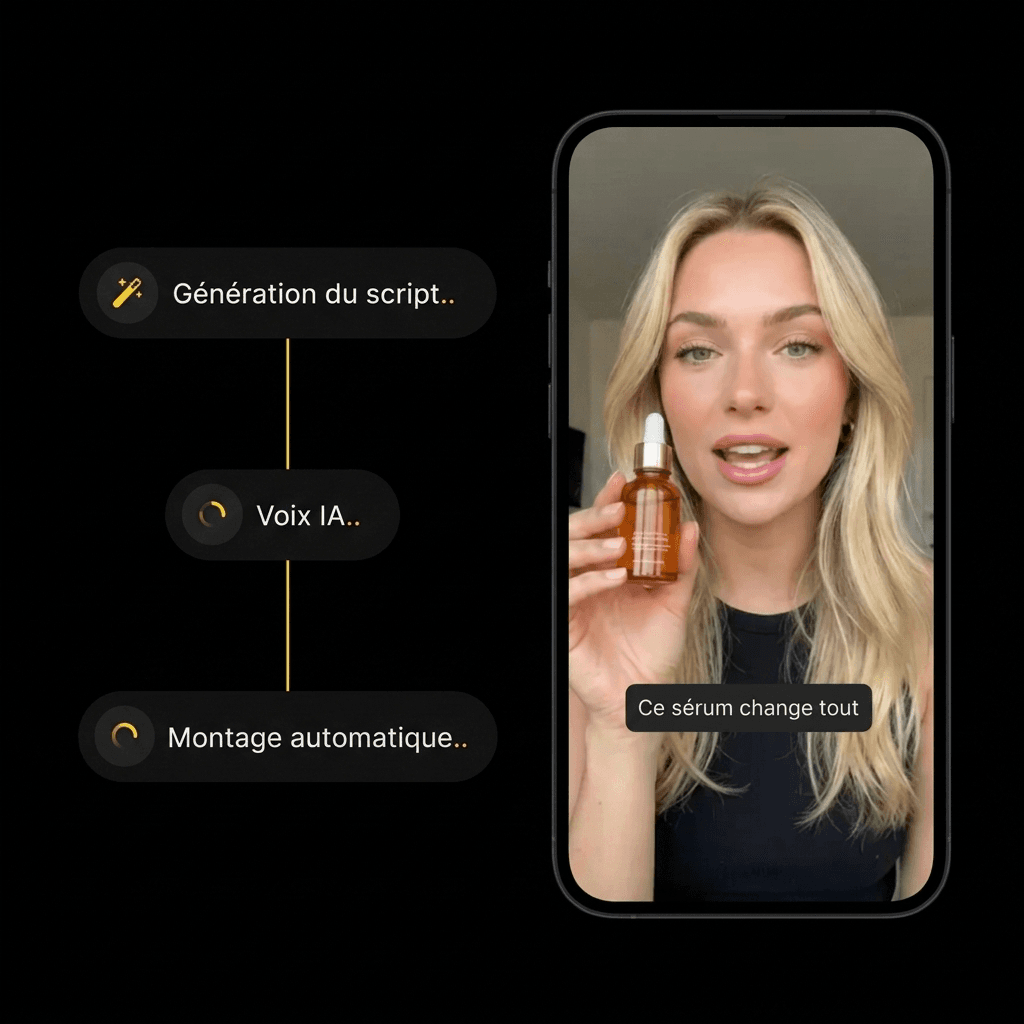
Step 2: Create your video with AI.

STEP 2

Create your video with AI.

Choose an AI influencer and a scene. Start the generation, then check out the result.

Step 3: Post your video with the product.

STEP 3

Post your video with the product.

When someone buys the product from your video, the brand pays you your commission.

Common questions

Common questions

FAQ

Hidden background, text over the product, another creator's video, pricing: get your answers before you process your video.

How do I remove captions from a TikTok video?

Can I recover the background hidden behind the captions?

Which method works best if the text is at the bottom?

What if the captions cover the product?

Is this the same as turning off a caption track?

Can I remove subtitles from another creator's video?

Is the subtitle remover free?

Get the full details in Klonify.

Get the full details in Klonify.

Find all the details in Klonify.

Want to go further?

Want to go further?

Learn more

AI Video Editor

Explore →

AI Voice Generator

Explore →

AI TikTok Shop Generator

Explore →

Get the full details in Klonify.

Get the full details in Klonify.

Find all the details in Klonify.

The Klonify solution

Klonify hides the old subtitles so you can write your own.

Blur the area or crop the video, then add your own text and AI voice in the editor. No starting from scratch.

Sign up for free

Free sign-up

2,700+Active creators
€2M+In sales generated on TikTok Shop
5 minFor a video ready to post